By the Ayanex Team | Digital Marketing Agency in Plano, TX
Search for a plumber, a coffee shop, or a dentist on your phone and you will see the same thing: a map, a short list of nearby businesses, star ratings, and buttons to call or get directions. You did not visit any of those businesses’ websites to get that information. It came from something called a Google Business Profile.
For a local business, this free listing is often the first impression a customer gets, and sometimes the only one. If it is missing, incomplete, or out of date, you can lose a customer before they ever reach your website.
This guide explains what a Google Business Profile is, where it appears, how Google decides which businesses to show, and how to set up and manage yours. At Ayanex, we help businesses across Plano, Dallas-Fort Worth, and beyond improve their local visibility, so we have kept this practical and beginner friendly.
What Is a Google Business Profile?
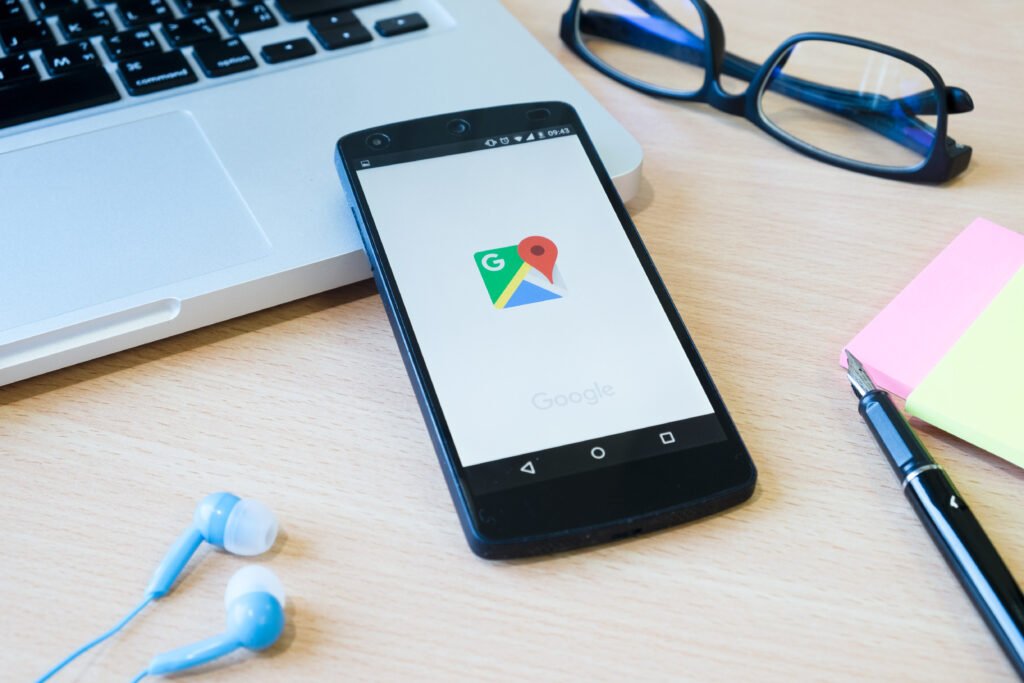
A Google Business Profile (often shortened to GBP) is a free listing that lets you control how your business appears on Google Search and Google Maps. According to Google, you can personalize it with photos, manage customer reviews, and share what makes your business unique to attract new customers.
In plain terms, it is your business’s public card on Google. It shows details such as your name, address, phone number, hours, website, photos, reviews, and what you offer. You claim it, you control the information, and Google shows it to people who are searching for what you sell.
Is Google Business Profile the Same as Google My Business?
Yes. The product launched in 2014 as Google My Business, and it was later renamed Google Business Profile. You will still see the old name, or the abbreviation GMB, in older articles and tools, but it refers to the same listing. If someone mentions a “Google Business listing,” they also mean the same thing.
Is a Google Business Profile Free?
Yes. Creating and managing a profile costs nothing. There is no fee to claim your listing or to use features such as reviews, posts, and photos. That makes it one of the most cost effective local marketing tools available.
Where Does a Google Business Profile Show Up?
One profile feeds several places on Google. BrightLocal describes the main ones, and understanding them helps you see what customers actually view.
| Where it appears | What the customer sees |
|---|---|
| Knowledge panel | A box on the right side of desktop results when someone searches your business name, showing your address, phone number, hours, and reviews |
| Local pack | The map with a short list of nearby businesses that appears when someone searches for a type of business, such as “dentist near me” |
| Local Finder | A longer list of matching businesses beside a map, reached by clicking “More places” under the local pack |
| Local service finder | A variation of the local finder shown for some service searches, where top spots may include sponsored ads |
| Google Maps | A listing with photos, hours, reviews, and directions for people searching on the Maps app or site |
Google also notes that you can show up when people search on Maps and Search for businesses like yours, even if they do not type “near me.” Google understands that many searches, especially on mobile, have local intent.
What Is Included in a Google Business Profile?
A profile is more than a name and a pin. Each section is a chance to answer a customer’s question. Common elements include:
- Business name, category, and description. The category tells Google what type of business you are. The description lets you explain what you do in your own words.
- Address or service area. Storefronts show a street address. Service businesses can define the areas they travel to.
- Hours. Regular hours plus special hours for holidays.
- Contact options. Phone number, website link, directions, and in some cases messaging.
- Photos and videos. Images of your location, team, products, and work.
- Reviews and ratings. Customer feedback, plus your replies.
- Products and services. A list of what you offer, with descriptions.
- Posts and updates. Short announcements about offers, events, or news.
- Attributes. Tags such as accessibility features or payment options.
- Questions and answers. A public section where customers can ask questions, where available.
- Bookings, reservations, and orders. Depending on your business type, Google lets customers book appointments, reserve tables, or order online from the profile.
Which features are available can vary by business type, location, and over time, so check your own dashboard to see what applies to you.

How Does a Google Business Profile Work?
Here is the process from start to finish.
Step 1: You Create or Claim the Profile
You add your business information through Google, either by creating a new profile or claiming one that already exists. Google breaks the setup into three simple stages: create, personalize, and grow.
Step 2: Google Verifies That Your Business Is Real
Before your profile is fully active, Google needs to confirm you are the genuine owner. Depending on your business and location, verification may happen by postcard, phone, email, or video. BrightLocal has a helpful guide on verifying a Google Business Profile.
Step 3: Google Matches Your Profile to Searches
When someone searches, Google looks at its database of business profiles and decides which to show and in what order. Google says local results are based mainly on three factors, explained in its local ranking guidance:
- Relevance. How well your profile matches what the person is searching for. A complete profile with an accurate category, services, and description gives Google more to work with.
- Distance. How far your business is from the searcher or from the location they entered. You cannot change where you are, but accurate address and service area settings make sure you appear for the right places.
- Prominence. How well known and well regarded your business is. Reviews, ratings, photos, and your presence across the web all contribute.
Step 4: Customers Take Action
Once your profile appears, people can compare you with nearby competitors, read reviews, view photos, check hours, and tap to call, request directions, visit your website, send a message, or book. Because listings are standardized, customers can quickly narrow their choices and pick who best fits their needs.
Step 5: You Track Results and Keep the Profile Fresh
Your profile includes performance insights showing how customers find you and what they do next, such as calling, requesting directions, or booking. Keeping your information accurate and active helps Google trust your listing and helps customers choose you.
Who Can Have a Google Business Profile?
Not every business is eligible. Per BrightLocal, you generally need face to face contact with customers, either at your location or at theirs, such as a plumber visiting homes. Google’s own eligibility guidelines explain the details.
- Storefront businesses such as restaurants, shops, salons, and clinics can list their address.
- Service area businesses such as electricians, movers, and cleaners can define the areas they serve, even without a public storefront.
- Online-only businesses that never meet customers in person generally do not qualify.
You do not need a website to claim a profile. That said, a website strengthens trust and gives customers more detail, as we explain below.
Why a Google Business Profile Matters for Local Businesses
- It puts you where customers are looking. People searching for a local provider often decide based on what appears in the map results before they ever click a website.
- It builds trust. Reviews act as modern word of mouth. BrightLocal’s research reports that Google is the most trusted local business discovery platform, ahead of a business’s own website.
- It makes comparison easy in your favor. A complete listing with strong photos, accurate hours, and good reviews stands out next to a thin one.
- It supports real actions. Calls, directions, messages, and bookings can happen straight from the profile.
- It costs nothing. You can set it up and manage it yourself without a marketing budget.
- It provides data. Insights show how customers found you and what they did, which helps you improve.
It is not a guarantee of customers. A profile is a foundation, and results depend on your competition, your reviews, and how well you maintain it.
Google Business Profile vs. Your Website
A common question is whether you still need a website. The short answer is yes. They do different jobs and work best together.
| Google Business Profile | Your Website | |
|---|---|---|
| Cost | Free | You build and host it |
| Where it appears | Google Search and Maps | Anywhere you link it |
| Best at | Getting found locally and driving calls and directions | Explaining your offer and building deeper trust |
| Control | Limited to Google’s fields | Full control of design and content |
| Typical action | Call, directions, message, book | Learn, compare, buy, request a quote |
Think of the profile as your front door on Google and your website as the rooms inside. If you need help with the second part, our website development team builds fast, mobile friendly sites designed to convert local visitors.
How to Set Up Your Google Business Profile
Most owners can complete setup in an afternoon.
- Search for your business on Google. If a listing already exists, claim it. If not, create one at business.google.com.
- Enter accurate details. Use your real business name, address or service area, phone number, and category.
- Verify your business. Follow the verification option Google offers.
- Add hours, photos, and a description. Include your storefront, team, and work, and write a clear, honest description.
- List your services or products. Add details customers search for.
- Turn on any available booking, ordering, or messaging features that fit your business.
Our local SEO and profile building service covers setup and ongoing management if you prefer to hand it off.
How to Optimize Your Google Business Profile for Local SEO
Setting up the profile is the start. These habits help it perform.
- Choose the most accurate primary category. It strongly signals what you do, so be specific rather than broad.
- Keep your name, address, and phone number consistent with your website and other listings. Mismatches can confuse Google and customers.
- Write a clear description that explains your services naturally, without stuffing keywords.
- Add real photos regularly. Fresh, genuine images show an active business.
- Collect reviews steadily and reply to every one, good or bad, politely and promptly. Never buy or fake reviews.
- Post updates. Share offers, events, and news so the profile stays current.
- Keep hours accurate, including holidays, so customers are never sent to a closed door.
- Add services and attributes that match how people search for you.
- Answer customer questions, where that feature is available.
- Review your insights monthly and adjust.
If you want to go deeper on the broader strategy, read our guide to local SEO for small businesses, and see how it compares with other approaches in Local SEO vs. Traditional SEO.
Common Google Business Profile Mistakes to Avoid
- Leaving it unclaimed or incomplete. Empty fields are unanswered customer questions.
- Stuffing keywords into the business name. Your name should match your real-world name. Keyword stuffing and fake addresses can lead to suspension, and a suspended profile can disappear from local results until resolved. BrightLocal explains how suspensions work.
- Inconsistent information across your website and other directories.
- Ignoring reviews. Unanswered reviews, especially negative ones, hurt trust.
- Uploading only stock images. Real photos build credibility.
- Setting it up once and forgetting it. Hours change, services change, and competitors stay active.
- Choosing the wrong category. It can send you the wrong customers or hide you from the right ones.
Our Take: What We See Most Often
After working with local businesses across Plano and the DFW metro, a few patterns stand out:
- Most profiles are underused, not broken. The majority of problems we see are simply missing information: no services listed, few photos, no replies to reviews. These are easy fixes that make a real difference.
- Consistency beats cleverness. Accurate, matching information everywhere helps more than any clever trick.
- The profile and the website should tell the same story. When the two match, customers feel confident. When they conflict, they hesitate.
- Reviews are an ongoing habit, not a one time project. Businesses that ask for feedback steadily tend to build more trust than those that rush to collect reviews after a problem.
- Be realistic. A strong profile improves your chances of being found and chosen, but rankings depend on competition and many other factors, and results vary.
Frequently Asked Questions About Google Business Profile
1. What is a Google Business Profile?
It is a free listing that lets you manage how your business appears on Google Search and Google Maps, including your name, hours, photos, reviews, and contact options.
2. How does a Google Business Profile work?
You create or claim your listing, verify your business, and fill in your details. Google then matches your profile to relevant searches using relevance, distance, and prominence, and customers can call, get directions, book, or visit your website straight from it.
3. Is Google Business Profile the same as Google My Business?
Yes. Google My Business was the earlier name for the same product.
4. Is Google Business Profile free?
Yes. Creating and managing a profile is free.
5. Do I need a website to have a Google Business Profile?
No, you can claim a profile without one. However, a website adds trust and detail, and the two work best together.
6. Can online-only businesses have a Google Business Profile?
Generally no. Google’s eligibility rules focus on businesses that have in-person contact with customers, either at their location or at the customer’s.
7. How long does it take to see results?
It varies. Verification can take a few days, and improvements in visibility depend on your competition, reviews, and how complete and active your profile is. Treat it as an ongoing effort.
Final Thoughts
A Google Business Profile is one of the simplest and most valuable tools a local business can use. It is free, it appears right where customers are searching, and it gives you control over how people first see your business. The work that matters is not complicated: claim it, verify it, keep it accurate, add real photos, earn and answer reviews, and check your results regularly.
If you want help setting up, optimizing, or managing your profile, Ayanex offers local SEO and digital marketing services for businesses in Plano, Dallas-Fort Worth, and across the United States. Contact us for a free consultation and we will review your current presence and show you where the easiest wins are.
Explore more guides on the Ayanex blog.
Sources referenced: Google, Business Profile · BrightLocal, What Is Google Business Profile and Why Do You Need It? · BizIQ, What Is a Google Business Profile? A Complete Guide
**TraceEagle — Free, All-Platform Network Packet Capture & Debugging Tool**
– Raw packet capture at the NIC level: DNS, QUIC, TCP/UDP — nothing slips through, granularity on par with Wireshark
– Auto-decrypts on capture: no proxy setup, no key import, no environment config — ciphertext becomes plaintext instantly
– Built for the hard cases: no jailbreak, no cert install, bypasses certificate pinning, decodes HTTP/3 & QUIC
– Full debugging toolkit: breakpoint editing, request replay, one-click load testing (true p99), reverse-engineer OpenAPI from traffic, generate code
– AI-powered capture: built-in MCP service exposing 40+ tools as APIs — let your AI assistant capture and debug on demand
Free across all platforms. Perfect for integration testing, mobile app debugging, API security, load testing, and network troubleshooting.
**TraceEagle — Free, All-Platform Network Packet Capture & Debugging Tool**
– Raw packet capture at the NIC level: DNS, QUIC, TCP/UDP — nothing slips through, granularity on par with Wireshark
– Auto-decrypts on capture: no proxy setup, no key import, no environment config — ciphertext becomes plaintext instantly
– Built for the hard cases: no jailbreak, no cert install, bypasses certificate pinning, decodes HTTP/3 & QUIC
– Full debugging toolkit: breakpoint editing, request replay, one-click load testing (true p99), reverse-engineer OpenAPI from traffic, generate code
– AI-powered capture: built-in MCP service exposing 40+ tools as APIs — let your AI assistant capture and debug on demand
Free across all platforms. Perfect for integration testing, mobile app debugging, API security, load testing, and network troubleshooting.
Try it → [https://traceeagle.com/](https://traceeagle.com/)